
Anker Prime Docking Station 14-in-1
4.3Editor score
160W total charging output
Four-device charging capability
Up to 10Gbps data speeds
Dual 4K display support
Discover the best docking station for Dell laptop options, comparing power delivery, display support, ports, compatibility, and setup needs for every workflow.
A docking station can transform a compatible Dell laptop from a portable computer into a full desktop workstation, adding displays, wired networking, faster USB connections, charging, and room for everyday accessories. A worthwhile dock must match the capabilities of the laptop’s USB-C port while fitting the displays, power demands, and workflow of its owner.
This guide compares ten docking stations for Dell laptops using the information supplied for each product. It examines charging capacity, video outputs, port selection, data speeds, monitor limitations, operating-system support, and included accessories, with special attention to the compatibility notes that can determine whether a dock works as intended.
Each review identifies the strongest reason to consider a particular model and any limitations that deserve attention. The Dell Pro Dock leads the list for broad modern-work features, while the Anker options stand out for display flexibility, compactness, and high-speed charging. Prices and availability can change, so confirm the current listing and your Dell model’s specifications before ordering.
4.3Editor score

4.5Editor score

4.5Editor score
The comparison below highlights charging power, display support, data connectivity, and the most important compatibility caveat for each dock, helping Dell users narrow the field before checking their exact laptop model.




The Dell Pro Dock WD25 combines a 4.5 rating with a strong collection of features for modern Dell AI PC users and compatible non-Dell systems. Its most appealing qualities are the up-to-100W power delivery, support for as many as four high-resolution displays, fast USB and network connections, and an ambidextrous USB-C cable design. It is a natural first choice for someone who wants a current, manageably designed workstation dock without assembling one from unrelated adapters.
We may earn a commission when you buy through this link, at no additional cost to you.
The product’s single-cable approach is especially useful at a permanent desk. A Dell laptop can connect for power, video, networking, and peripherals while the included cable can route toward the left or right to reduce desk clutter. The durable USB-C connector is designed for repeated daily use, while the dock’s support for newer ports and faster transfer speeds suits users who regularly move files or connect external storage. Native support for up to four high-resolution displays also offers more expansion potential than a basic dual-monitor hub.
There are trade-offs to consider. The stated compatibility is centered on newer mainstream Dell AI PCs and non-Dell PCs with suitable USB-C capabilities, so owners of older Dell systems should verify support before buying. Display resolution and refresh-rate combinations can also depend on the laptop’s graphics capabilities, the connected monitors, and the selected output. IT buyers may additionally want the stated flexible management capabilities to align with their organization’s administration environment.
Overall, the WD25 is a strong recommendation for owners of recent Dell laptops who want a polished, future-oriented dock with substantial display expansion and dependable one-cable charging. It is particularly suitable for analysts, designers, office professionals, and hybrid workers. Those with an older or unusual port configuration should check the exact system requirements, while compatible users can approach this as a well-rounded central connection point for the desk.
The routed USB-C cable allows the workstation to look organized from either side of the desk, while the dock handles charging, displays, networking, and accessories through one upstream connection. That simplicity can reduce desk clutter and make it easier to move between a docking station and a portable setup.
Native support for up to four high-resolution displays makes the WD25 appealing to users who manage spreadsheets, communications, reference material, and creative applications at the same time. Actual modes still depend on the Dell model and monitor specifications, so the intended configuration should be checked before purchase.
We may earn a commission when you buy through this link, at no additional cost to you.
The Anker 8-in-1 USB-C Hub is an economical way to add dual-display support and useful accessories to a compatible Dell laptop. It carries a 4.5 rating and concentrates eight functions behind one USB-C connection: power input, two USB-A data ports, two HDMI outputs, Ethernet, and a microSD/SD card reader. That combination makes it a practical choice for a basic but productive desk setup.
We may earn a commission when you buy through this link, at no additional cost to you.
The key benefit is dual HDMI connectivity. A single display can stream or mirror at up to 4K@60Hz, while two connected displays can run at up to 4K@30Hz. Power Delivery pass-through charging reaches up to 85W, enough for many mainstream Dell notebooks when paired with a suitable 100W wall charger and USB-C-to-C cable. A wired Ethernet port adds stability for large transfers, conferencing, and network management.
The main limitation is the small USB-A selection. With only two USB-A data ports, users may need an additional hub for several peripherals, and the slower data standard of these ports may not suit demanding external storage workflows. The stated 100W charger and USB-C-to-C cable are not included, and macOS users should note that the two external displays will be identical. Linux is also unsupported according to the product information.
This dock suits Dell owners who need dual monitors, charging, Ethernet, and a few USB accessories without paying for a large multiport workstation. It is less appropriate for heavily loaded USB setups or users who require macOS extended multi-monitor support. Compatible Windows and ChromeOS systems can gain a straightforward, tidy upgrade with relatively few components.
Two HDMI ports make it simple to use a pair of monitors with one upstream USB-C connection. One display can reach 4K@60Hz, and a two-screen arrangement can support 4K@30Hz output, which is useful for office documents, financial dashboards, and general productivity.
Up to 85W Power Delivery keeps many compatible Dell laptops charged while the dock is in use. Gigabit Ethernet provides a dependable alternative to wireless connectivity, and the card reader is convenient for moving photographs or files without occupying another adapter.
We may earn a commission when you buy through this link, at no additional cost to you.
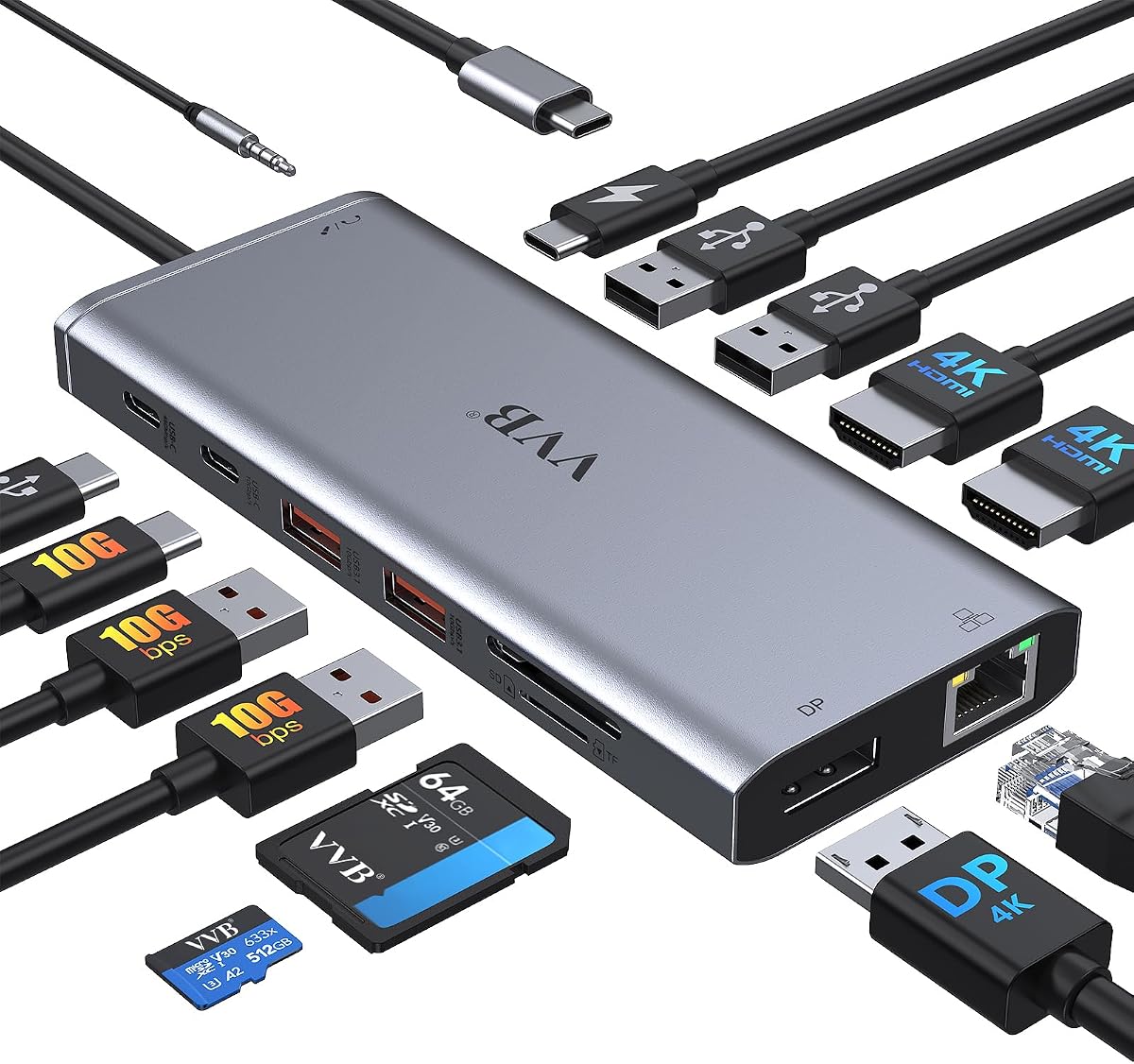
The Anker Prime 14-in-1 is a premium charging dock built for demanding desks, with a 4.3 rating and up to 160W of total output. It can charge a compatible Dell laptop and several additional devices, while supporting two displays, extensive USB connectivity, audio, and fast data transfers. The included 100W, 10Gbps upstream cable reinforces its appeal as a complete workstation solution.
We may earn a commission when you buy through this link, at no additional cost to you.
Charging is the defining feature. Three USB-C ports can provide up to 100W each, while a USB-A port can deliver up to 12W, allowing up to four devices to charge simultaneously. Fourteen integrated functions cover the usual desk needs, and available data speeds reach 10Gbps for rapid transfers between compatible devices. Dual HDMI connections support clear streaming, mirroring, and extended productivity setups.
The display specification is less ambitious than some may initially expect. With a DisplayPort 1.4 laptop, the two HDMI outputs can run at up to 2K@60Hz, while a DisplayPort 1.2 laptop is limited to 1080p@60Hz. The dock does not support 5120×1440. macOS systems display identical content on both external monitors, and Linux is not supported. These limitations make the Prime more attractive for compatible Windows and ChromeOS users.
The Anker Prime is recommended for professionals who want one dock to handle multiple fast-charging devices, two displays, and high-speed peripherals. It is particularly relevant to Dell users with a USB-C, USB4, or Thunderbolt connection that supports DisplayPort Alternate Mode and Power Delivery. Buyers should confirm display expectations and operating-system requirements, but compatible users receive a notably capable all-in-one charging hub.
With as much as 160W of total output, the Prime can serve a compatible Dell laptop alongside a phone, tablet, accessory, or other connected device. Its three USB-C charging ports and one USB-A charging port make it a centralized power solution for a busy workspace.
Data connections reaching 10Gbps are valuable for external SSDs, flash storage, and routine file transfers. The included 3.3-foot, 100W, 10Gbps USB-C cable provides a capable upstream link when the host laptop supports the necessary standards.
We may earn a commission when you buy through this link, at no additional cost to you.
The HoDo 8-in-1 Multiport Dock offers an unusually broad collection of display connectors, including two HDMI ports, DisplayPort, and VGA, and earns a 4.3 rating. It appeals to Dell users who need flexible monitor arrangements, particularly in offices where different rooms have different display connections. The dock can also deliver safe laptop charging up to 87W.
We may earn a commission when you buy through this link, at no additional cost to you.
Its video options support single high-resolution output, dual displays, and triple-display configurations. The information states that dual and triple outputs are possible when the laptop supports DisplayPort 1.4, although using VGA reduces the resolution of all connected displays to 1080p. That caveat makes the modern digital outputs more attractive for current Dell workstations, while VGA adds useful legacy support.
The three USB 2.0 ports prioritize ordinary peripherals such as keyboards, mice, and flash drives. They support transfer speeds up to 480Mbps, but that is modest for modern external storage. A suitable 65W-or-higher USB-C power adapter is required for charging, and neither that adapter nor the power cord is included. The listed 100W input and 87W output should not be confused with a bundled power supply.
Compatibility is the most important consideration. The dock requires a full-featured USB-C port with DisplayPort Alternate Mode, and the supplied information explicitly excludes some Dell and other laptop models, including certain Dell Gaming, Latitude 3440 or 3340, and ThinkPad X1 Carbon generations. It is best suited to owners of a compatible Dell system who value multiple video connectors more than high-speed USB storage.
Having HDMI, DisplayPort, and VGA allows the dock to work with a wider range of monitors than a model offering only one connector type. Users can select the output that best fits each display, subject to the laptop and resolution limitations described in the product information.
This dock does not support every USB-C laptop, even when the port appears physically similar. The listed exclusions are significant, so checking the exact Dell model and confirming DisplayPort Alternate Mode is essential before purchase.
We may earn a commission when you buy through this link, at no additional cost to you.
The Anker Nano 13-in-1 is distinctive because it combines a desktop dock with a detachable six-in-1 portable hub. It has a 4.2 rating and is designed for users who alternate between a permanent workstation and mobile work. The main dock supports up to three displays, provides 100W laptop charging, and includes fast USB-C data connections.
We may earn a commission when you buy through this link, at no additional cost to you.
Port selection is comprehensive. It includes an upstream USB-C connection, two USB-C data ports rated at 5Gbps and 10Gbps, three USB-A ports, two HDMI ports, DisplayPort, Gigabit Ethernet, a 3.5mm audio jack, SD and TF card slots, and DC power input. A single display can run at up to 4K@60Hz, two at up to 2K@60Hz, and three at 1080p@60Hz, subject to the host system.
The included 140W power adapter helps maintain stable performance under a full peripheral load. One USB-C data port reaches 10Gbps, making the dock suitable for routine transfers and external storage, although older USB-A accessories remain limited to the speeds of their own standards. macOS users are limited to mirrored output across multiple external displays, and the dock cannot function until a laptop is connected through the upstream port.
Compatibility is broad for modern Windows laptops, and the supplied information specifically mentions Dell XPS models. It is a compelling choice for mobile professionals who want one solution for a home office, office desk, and travel bag. Users should verify their Dell model’s USB-C capabilities, while those with compatible systems benefit from a flexible, driver-free setup that can follow them between locations.
The detachable hub turns the product into two practical tools: a full desktop dock and a small travel accessory. It can remain at the office while the portable section goes on the road, reducing the need to maintain separate peripheral arrangements.
A 10Gbps USB-C data port, Gigabit Ethernet, 100W charging, and three display outputs create a well-rounded connection package. The included 140W adapter and three-foot 10Gbps cable help ensure the dock has suitable power and bandwidth for demanding desk configurations.
We may earn a commission when you buy through this link, at no additional cost to you.
The USB C Laptop Docking Station 14-in-1 is a broad connectivity option that receives a 4.3 rating and supports dual or triple displays on Windows. Its two HDMI outputs, DisplayPort, USB-C and USB-A data connections, Gigabit Ethernet, card reader, and audio jack cover many common desk needs in a single enclosure.
We may earn a commission when you buy through this link, at no additional cost to you.
Video flexibility is one of its strongest attributes. A single HDMI 1 or DisplayPort output can reach 4K@60Hz, while HDMI 2 reaches 4K@30Hz. With a DisplayPort 1.4 laptop, a dual-monitor configuration can deliver 4K@30Hz and 1080p@60Hz. A Windows triple-display setup operates at 1080p. MacBook laptops support only the same image on external monitors, and compatibility with a converter is explicitly excluded.
The data side is more modern than many smaller docks. One USB-C and two USB-A 3.1 ports support speeds up to 10Gbps, while additional USB-C 2.0 and two USB-A 2.0 ports handle lower-speed accessories. The dock also provides 100W power input with safe laptop output limited to 87W. A charging cable and adapter are not included, so users must bring their own suitable power supply.
The stated compatibility list includes Dell Latitude, Inspiron, Vostro, and XPS 13, 15, and 17 models, as well as several systems from HP, Lenovo, and Microsoft. However, the broader warning that not all USB-C devices support display output is important. This dock is a strong option for a compatible Windows Dell laptop used by someone who wants many ports, fast data, Ethernet, and several display options.
Fourteen functions provide room for dual monitors, wired internet, storage, card reading, audio, and several USB peripherals. The mix of 10Gbps and 480Mbps ports lets users assign modern storage to the faster connections while reserving slower ports for keyboards, mice, and other basic devices.
Dual and triple-monitor arrangements are stated for Windows, with resolution determined by the host’s DisplayPort version. MacBook users receive mirrored images on external screens, and the product cannot be used through a converter, making the operating system and host port important considerations.
We may earn a commission when you buy through this link, at no additional cost to you.
The Dell WD19S 180W is built for users who prioritize a high level of laptop power delivery and a familiar Dell-designed workstation connection. It has a 3.8 rating and pairs a 180W power adapter with 130W Power Delivery, while offering USB-C, HDMI, and dual DisplayPort connectivity for compatible Dell laptops.
We may earn a commission when you buy through this link, at no additional cost to you.
The emphasis on power makes this model relevant to workstations that may draw more energy than a lightweight universal hub can comfortably supply. Dual DisplayPort outputs are useful for users who favor modern digital monitors, and the HDMI output adds flexibility for an additional screen or a display that lacks DisplayPort. The design is intended to optimize a fixed office workspace and reduce the number of separate connections attached to the laptop.
Compared with the other options, the available product information is quite limited. It confirms the Dell identification, 180W adapter, 130W delivery, and the main display and USB-C connections, but it does not describe detailed transfer speeds, dimensions, included cables, or the precise monitor resolutions supported. The 3.8 rating is also the lowest among the ten listed products, so buyers should examine recent customer feedback and current listing details carefully.
This is a sensible candidate for a compatible Dell business laptop that needs robust charging and a conventional multi-monitor workstation arrangement. It may appeal more to enterprise and office users than buyers seeking many fast USB ports, card readers, audio connections, or a compact travel design. Confirming power requirements, port layout, and system support is essential before finalizing a purchase.
The combination of a 180W adapter and 130W laptop delivery is designed to support demanding compatible Dell notebooks. It is a more focused proposition than a travel hub, favoring a desk where reliable charging and established display connections matter most.
Dual DisplayPort and HDMI outputs suit offices with digital productivity monitors and provide several ways to build a larger workspace. The published information is limited, so exact resolutions and refresh rates should be verified in Dell’s compatibility documentation.
We may earn a commission when you buy through this link, at no additional cost to you.
The Anker 13-in-1 Triple Display Dock is a compact vertical workstation hub with a 4.0 rating. It provides 13 ports, including two HDMI connectors, DisplayPort, three USB-C ports, three USB-A ports, Gigabit Ethernet, card readers, a 3.5mm audio jack, and DC input. Its vertical form factor makes it especially useful where horizontal desk space is limited.
We may earn a commission when you buy through this link, at no additional cost to you.
The dock can charge a compatible Dell laptop at up to 85W while providing up to 18W for a phone. A 135W power adapter is included, making the setup more complete than options that require a separate desktop charger. Display options include a single 4K@60Hz monitor or up to three external monitors at 1080p@60Hz, which is useful for productivity-focused arrangements that prioritize screen count over maximum resolution.
Windows 10 and 11 and ChromeOS systems with MST can use extended triple displays when connected through a full-featured USB-C, USB4, or Thunderbolt 3, 4, or 5 port. macOS supports charging and data functions but limits external monitors to mirror mode. Users must confirm DisplayPort Alternate Mode and Power Delivery on the Dell laptop before purchasing.
This is a good fit for a compatible Windows Dell laptop in a compact office, shared workstation, or home setup that needs three screens and plenty of accessories without a sprawling hub. Its 10Gbps USB-C connection and card readers enhance everyday productivity. The 4.0 rating is solid rather than exceptional, but the feature balance and included adapter make the dock convincing for display-focused users.
The vertical enclosure measures 4.9 by 3.5 by 1.6 inches according to the supplied information. It can run three 1080p displays on compatible Windows or ChromeOS systems, making screen expansion practical even on a relatively narrow desk.
The included 135W adapter supports 85W host charging, 18W device charging, and 10Gbps data transfers. SD and microSD readers, Gigabit Ethernet, and a 3.5mm audio connection cover common desk accessories without requiring separate adapters.
We may earn a commission when you buy through this link, at no additional cost to you.
The Dell WD19 130W is a well-documented business docking station with a 4.0 rating. It provides 90W Power Delivery, a 130W AC power adapter, and a balanced set of ports for compatible Dell laptops. Its two DisplayPort 1.4 outputs and HDMI 2.0B connection make it a natural choice for a conventional office workstation built around digital monitors.
We may earn a commission when you buy through this link, at no additional cost to you.
The physical specifications are clearly provided. The dock measures 8.1 by 3.5 by 1.1 inches and weighs 20.63 ounces. Connectivity includes one USB-C 3.1 Gen 2 port, three USB-A 3.1 Gen 1 ports with the first offering PowerShare, a combination audio/headset jack, a separate audio output, and Gigabit Ethernet. These features cover the usual keyboard, mouse, network, and display needs of a business user.
As with any laptop dock, the host system determines what is possible. The USB-C interface must support the required video and power features, and the available display configuration depends on the Dell model’s graphics capabilities. The supplied listing refers users to its description for important compatibility information, making model verification an essential part of the buying process.
The WD19 130W is recommended for owners of compatible Dell business systems who want a traditional, well-specified enterprise dock with dependable charging and multiple display outputs. It may lack the newest fast-data ports and compact travel design offered by some Anker products, but it offers a clear, established port map. Users prioritizing a familiar Dell platform should compare it directly with the newer Pro Dock and other compatible options.
The published port and size details make it easier to assess desk fit and required equipment. The dock offers three USB-A ports, modern digital video outputs, wired networking, and two audio connections without relying on vague capacity descriptions.
The 130W power adapter supplies the dock, while up to 90W is directed to the connected laptop. This arrangement is intended for compatible Dell business notebooks that regularly operate at a stationary desk and need a dependable single-cable routine.
We may earn a commission when you buy through this link, at no additional cost to you.
The renewed WD19 Dell docking station offers a 4.1 rating and the established functionality of the WD19 platform, paired with a 180W adapter and USB-C cables. It is intended for buyers who are comfortable with renewed hardware and want a Dell-oriented dual-monitor connection point for a compatible notebook.
We may earn a commission when you buy through this link, at no additional cost to you.
Its port layout includes one USB-C 3.1 Gen 2 port, three USB-A 3.1 Gen 1 ports with PowerShare on the first, a combination headset jack, a separate audio output, HDMI, DisplayPort, and Gigabit Ethernet. The dock measures 8.1 by 3.5 by 1.1 inches and weighs 20.63 ounces. The included high-wattage adapter gives it the fundamentals needed for a fixed workstation.
The renewed condition is the main distinction. Physical markings, connector wear, packaging, and cosmetic condition may vary, and buyers should review the seller’s condition description and warranty terms carefully. A renewed dock can also require firmware attention. The supplied information recommends updating the dock firmware when compatibility issues occur, which is an important step for owners of compatible Dell systems.
Compatibility extends to select Inspiron, Venue, Precision, XPS, and Latitude models, but the laptop must support USB-C DisplayPort or Thunderbolt 3 as appropriate. This is a practical option for a secondary office, flexible work area, or cost-conscious buyer who already understands the WD19 platform. Confirm the exact model, condition, included accessories, and firmware status before purchase.
The renewed model preserves the well-known WD19 combination of modern digital display outputs, USB-A connectivity, audio, and Gigabit Ethernet. That makes it useful for users already familiar with the platform or assembling a matching multi-location office.
Renewed electronics can show signs of previous use, and a dock may benefit from firmware updates. Review the condition statement, included cables and adapter, return policy, and compatibility with the intended Dell laptop before completing the order.
We may earn a commission when you buy through this link, at no additional cost to you.
The right dock depends less on brand alone and more on your Dell laptop’s USB-C capabilities, the number and type of monitors, charging needs, peripherals, and portability requirements. Use the following factors to narrow the options before making a final compatibility check.
A docking station needs a host connection capable of carrying video, data, and power. For most of the featured models, the relevant USB-C port must support DisplayPort Alternate Mode and Power Delivery; some also list USB4 or Thunderbolt compatibility. A USB-C port that only handles data and charging cannot drive the dock’s external displays, even when the connector shape looks correct. Compatibility can also differ between ports on the same laptop.
Dual-monitor support is common, but the maximum resolution, refresh rate, and number of independent screens vary considerably. The Dell Pro Dock supports up to four high-resolution displays. Several Anker and multiport models support three displays, often with triple-output resolution limited to 1080p. Other docks offer only dual displays but can provide 4K@60Hz on a single screen. Mac systems frequently mirror external displays rather than extending them.
Charging capacity must be adequate for the Dell notebook and the connected peripherals. The featured docks range from 85W to 100W of laptop delivery, while the Dell WD19S pairs 130W delivery with a 180W adapter and the Anker Prime offers 160W across multiple devices. Some docks require a separate power adapter and cable, while others include them. Check the laptop’s power requirements and whether the dock’s adapter is included.
USB port standards influence how quickly external storage, card readers, and other accessories operate. USB-C connections reaching 10Gbps are useful for modern SSDs and large media files, whereas USB 2.0 at 480Mbps is more appropriate for keyboards, mice, and simple flash drives. Some docks have only two or three USB-A ports, making a secondary hub useful for crowded desks. Consider both connector type and transfer speed.
Gigabit Ethernet can offer a stable connection for large transfers, cloud applications, and video calls where a stable wired path is preferable. Several featured docks also include a 3.5mm audio jack for wired headsets, speakers, or microphones, sometimes alongside a separate audio output. These details may matter in conference rooms, shared offices, and call-heavy environments but can be less important for a minimal travel setup.
A full-size dock is ideal for a permanent desk, while a compact model can be carried more easily. The Anker Nano addresses both needs with a detachable six-port hub, while the Anker 13-in-1 uses a vertical enclosure to conserve space. The Dell WD19 models are wider but intended for stationary setups. Consider the size of the desk, storage for the adapter and cable, and whether the dock must travel with the laptop.
Windows 10 and 11 generally receive the broadest multi-monitor support among the listed docks, with ChromeOS also supported by several Anker models. macOS users are commonly limited to mirrored external displays, and Linux is unsupported for multiple featured products. The HoDo and generic multiport docks include explicit exclusions for some Dell models, making their compatibility lists especially important to read. The operating system and exact host model should be checked together.
Enterprise buyers may value more than physical ports. The Dell Pro Dock includes flexible management capabilities intended to support IT efficiency, while its construction uses at least 65% postconsumer recycled materials and 100% recycled or renewable packaging. It also advertises up to a 72% reduction in standby power consumption. These features can matter in managed offices, although the product data does not specify every administrative platform or deployment detail.
Start by confirming that the Dell laptop, operating system, and selected USB-C port support every function you intend to use. Review DisplayPort Alternate Mode, Power Delivery, monitor resolution limits, and any model-specific exclusions. Connect the dock’s upstream USB-C cable directly to the laptop, attach the appropriate power adapter if one is not included, and allow a short time for the operating system to recognize the new displays and accessories.
Arrange the display cables and peripherals, then configure the monitor layout in the operating system’s display settings. Select the desired primary screen, extension or mirroring mode, and supported resolution or refresh rate. Connect Ethernet, storage, card readers, keyboard, mouse, and audio equipment one at a time when troubleshooting, because isolating each component makes it easier to identify a resolution or bandwidth problem. Avoid adding a converter when the dock and laptop already support the required direct connection.
For care, keep the dock on a stable, ventilated surface and avoid placing heavy objects on its enclosure. Handle the USB-C connector and monitor plugs without pulling on the attached cables. Keep the connector and cable path free of dust and moisture, use the specified power supply when charging is required, and check Dell or manufacturer guidance for firmware updates. A careful connection, routine inspection, and compatible host configuration will help maintain stable performance.
No. The USB-C port must support the functions the dock requires, especially DisplayPort Alternate Mode for external displays and Power Delivery for charging. A data-only or charge-only USB-C port will not operate every feature. Check the exact Dell model and the port specifications before ordering, even if a similar Dell model appears in a compatibility list.
Most of the featured docks include Power Delivery, but the amount delivered depends on the model and the power adapter used. Options range from 85W to 100W, with the Dell WD19S providing 130W and the Anker Prime distributing 160W across connected devices. Some products require a separate compatible charger, so confirm both the dock’s input and output specifications.
The Dell Pro Dock WD25, Anker Nano 13-in-1, Anker 13-in-1, HoDo 8-in-1, and the generic 14-in-1 dock all offer multi-monitor configurations in their supplied information. Triple-output resolution is commonly limited to 1080p, and the host laptop must support the necessary display protocols. Windows generally provides the broadest extended-display support among the featured choices.
They can be, but compatibility depends on the specific model and its USB-C capabilities. The Anker Nano is specifically listed as compatible with Dell XPS systems, and the generic 14-in-1 lists several Dell Latitude, Inspiron, Vostro, and XPS models. Conversely, some products exclude particular Latitude and ThinkPad generations because their USB-C ports lack the required video output.
Support varies. The Anker 8-in-1 and Prime products list Windows 10, Windows 11, and ChromeOS compatibility, with macOS display mirroring limitations and no Linux support. The Anker 13-in-1 supports Windows and ChromeOS with extended triple displays, while macOS is limited to mirroring. The HoDo and generic 14-in-1 products also state that macOS external screens show the same image.
Many of the featured docking stations are designed for plug-and-play use, and the Anker Nano explicitly requires no driver installation. Other models may benefit from firmware updates, as the renewed Dell WD19 listing recommends when compatibility issues occur. If displays or ports are not recognized, update the laptop, dock firmware where applicable, and the graphics or USB controller software provided by the manufacturer.
Laptop charging refers to the power delivered through the dock’s upstream USB-C connection. The Anker Prime additionally distributes up to 160W across three USB-C ports and one USB-A port, allowing up to four devices to charge at once. A dock advertised with high total output may still deliver a different amount to the laptop itself, so both figures should be checked.
It can be, provided the condition and warranty are acceptable for the user’s needs. The renewed WD19 listing includes a 180W adapter and an established Dell port layout, but connector wear, cosmetic marks, packaging, and included accessories may vary. Review the condition description, firmware guidance, compatibility, and return terms carefully before installing it as a primary office dock.
The Dell Pro Dock WD25 is the strongest all-around recommendation for compatible modern Dell laptops because it combines up-to-100W charging, support for as many as four high-resolution displays, faster USB and networking, and a thoughtfully routed USB-C cable. The Anker Prime 14-in-1 stands out for premium multi-device charging and 10Gbps data, while the Anker 8-in-1 provides a straightforward and economical route to dual displays, Ethernet, card reading, and laptop charging.
Prioritize the features your work actually requires. Multi-monitor users should check both the number of screens and their supported resolution, while heavy users of external storage should look for 10Gbps USB-C connections. Frequent travelers may prefer the Anker Nano’s detachable hub, while a permanent Dell office may benefit most from native Dell management, reliable power delivery, and established enterprise-style port layouts.
Compatibility should always be confirmed before checkout. Check the exact Dell model, the capabilities of the specific USB-C port, the operating system, the monitors, and whether a charging adapter is included. Product listings, current prices, availability, and firmware support can change, so review the latest details on the linked Amazon pages before making the final purchase.