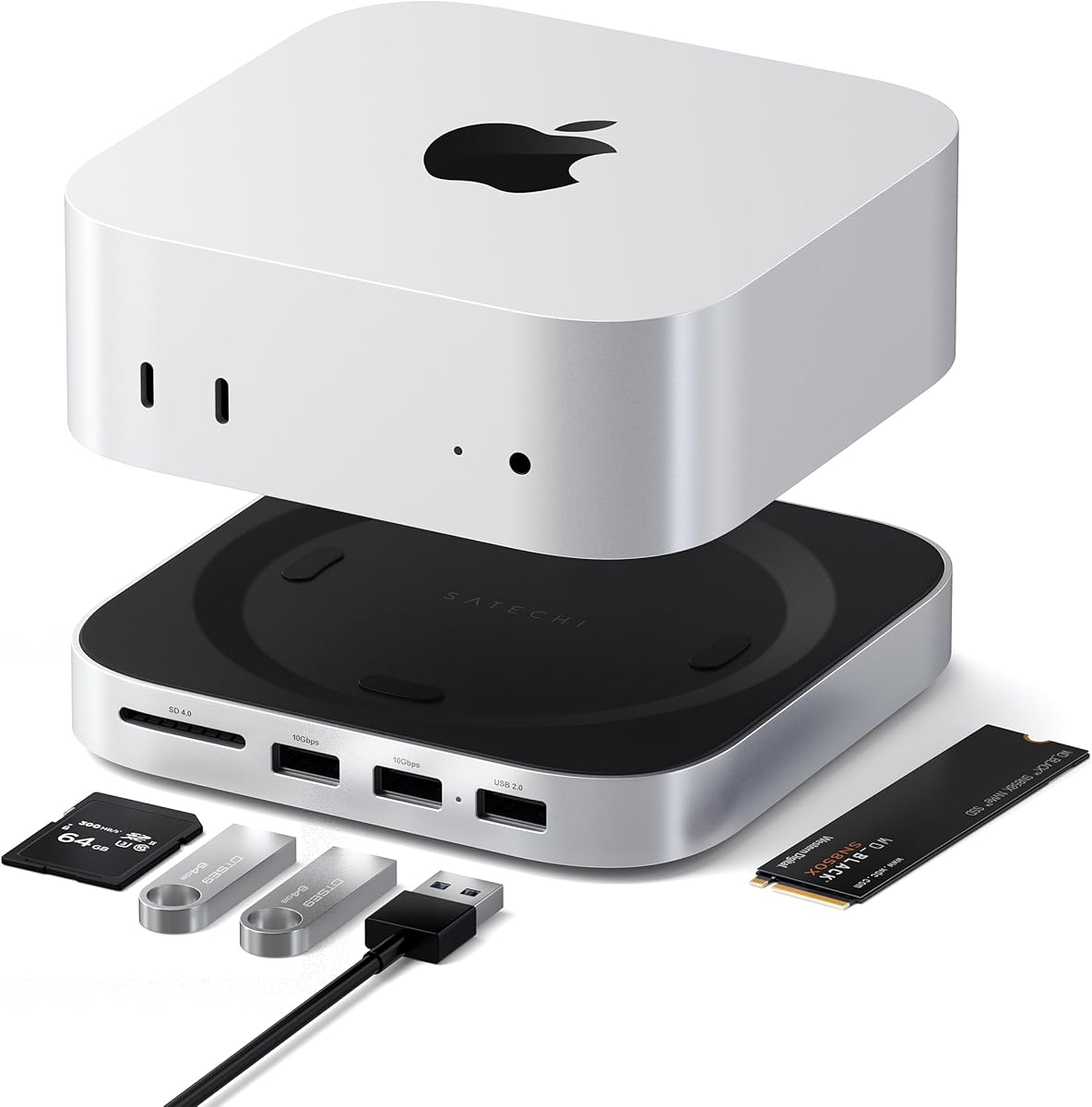
Satechi Mac mini M6, M5 Pro, M4 Hub
4.5Editor score
Five front-facing expansion ports
4TB NVMe storage support
UHS-II card reader
Aluminum heat-dissipating design
Our Mac Mini M4 Dock guide compares ten models for storage, display support, USB expansion, cooling, compatibility, and everyday setup ease at home.
A Mac Mini M4 dock can transform a compact desktop into a more practical workstation by adding storage, displays, card readers, USB-A connections, and easier access to the power button. The right model depends on the devices you use, the monitors you own, and whether your priority is a tidy desk or maximum expandability.
We compared all ten products by examining their supported Mac Mini configurations, storage capacity, display outputs, USB speeds, card-reader performance, cooling design, bundled accessories, and practical compatibility notes. The guide covers dedicated enclosures, conventional hubs, multi-display models, and a retro-style dock with a built-in screen.
Each pick highlights a different reason to buy, from a balanced everyday dock to a premium option with dual storage bays or an integrated display. Ratings and product details reflect the supplied information, while availability and pricing can change, so readers should verify current listing details before purchasing.
4.5Editor score

4.8Editor score

4.3Editor score
The comparison covers dedicated Mac Mini stands, dual-bay storage docks, multi-display hubs, a Thunderbolt 4 station, and a retro-inspired model with an integrated screen, making it easy to identify the option that best matches your ports, storage, and display requirements.


The UGREEN Mac mini Dock & Stand with NVMe SSD Enclosure for M6/M5 Pro/M4 earns a 4.5 rating and stands out as a balanced all-purpose upgrade for a Mac Mini M4. It combines a molded stand, an M.2 storage enclosure, and an 11-port hub in a single desktop accessory, reducing the need for several separate devices. Its strongest attraction is the balance between a broad port selection and a relatively compact footprint.
We may earn a commission when you buy through this link, at no additional cost to you.
Storage capacity reaches 8TB when a compatible M.2 NVMe SSD is installed. The enclosure accepts 2230, 2242, 2260, and 2280 sizes and supports transfer speeds up to 10Gbps, which is useful for large media libraries, project files, and local backups. The hub adds three 10Gbps USB-A ports, two 5Gbps USB-A ports, two 10Gbps USB-C data ports, and a UHS-I SD/TF reader capable of up to 170MB/s. The SSD itself is not included.
Power is flexible, but the distinction matters. The dock can draw power from the Mac Mini, while an external adapter is recommended for multi-device setups. That recommendation is sensible because more drives, displays, and peripherals can increase demand. The power-button lever improves daily convenience by reducing the need to lift the computer, and anti-slip silicone pads help protect the Mac Mini's base. A four-centimeter cable also supports a compact, organized appearance.
This UGREEN is a strong recommendation for a creator, developer, or office user who wants storage and peripheral expansion without assembling a complicated collection of hubs. It may be unnecessary for someone who already owns a Thunderbolt dock and needs only a few USB-A ports, but for a broad all-in-one upgrade, it is difficult to overlook. Verify drive compatibility and power needs before installation.
Adding an M.2 NVMe drive to the stand gives the Mac Mini M4 a more desktop-like storage arrangement. The 8TB ceiling and 10Gbps interface make the enclosure relevant to photographers, video editors, and users who regularly move large project folders between machines.
The combination of 10Gbps USB-A, 5Gbps USB-A, and 10Gbps USB-C ports accommodates fast external drives as well as keyboards, mice, card readers, and other accessories. The front card reader is particularly convenient when importing files from cameras or memory cards.
We may earn a commission when you buy through this link, at no additional cost to you.
The Satechi Mac mini M6, M5 Pro, M4 Hub & Stand with NVMe SSD Enclosure, Silver receives a 4.5 rating and is the premium choice in this guide. Its defining quality is restraint: rather than surround the Mac Mini with a large collection of ports, it uses a compact aluminum stand and places five useful expansion points at the front. The result feels purpose-built for users who value organization and material quality.
We may earn a commission when you buy through this link, at no additional cost to you.
The enclosure supports M.2 NVMe SSDs in 2230, 2242, 2260, and 2280 formats, with a maximum capacity of 4TB and transfer speeds up to 10Gbps. SSDs with heatsinks and double-sided drives are incompatible, so buyers should check the physical form of their intended drive. Front connectivity includes two 10Gbps USB-A 3.2 ports, one 480Mbps USB-A 2.0 port, and a UHS-II SD reader rated up to 312MB/s.
Satechi has paid particular attention to the Mac Mini's airflow. Heat-dissipating bottom vents and a recessed top help maintain clearance around the computer's fan, while the 12.7 by 12.7 by 2.06 centimeter aluminum body keeps the overall design compact. The package includes a screw, screwdriver, thermal pad, manual, and dedicated support, and the product carries a two-year limited warranty.
This hub is best for a Mac Mini M4 owner who wants fast front access, a card reader, and tidy storage without a large multi-display enclosure. It is less suitable for users who require multiple video outputs, more than one USB-C data port, or a high-capacity dual-drive setup. Within its focused feature set, however, it offers a polished and highly organized solution.
Putting frequently used ports at the front removes the need to reach behind the Mac Mini for media or peripherals. The pair of 10Gbps USB-A ports handles modern accessories well, while the lower-speed USB-A port can support a keyboard, mouse, or other basic device.
The recessed upper surface, bottom vents, and included thermal pad show that the enclosure was designed around the compact computer's thermal needs. Buyers should still confirm that their selected SSD has the dimensions and physical construction listed as compatible.
We may earn a commission when you buy through this link, at no additional cost to you.
The UGREEN Mac mini Dock DP Hub 4K@144Hz with NVMe Enclosure has a 4.4 rating and makes a strong case for users whose main requirement is a high-refresh external display. It combines a molded stand, NVMe storage, DisplayPort, USB expansion, card-reading capability, and audio support in one integrated accessory.
We may earn a commission when you buy through this link, at no additional cost to you.
Its headline display capability differs by Mac Mini configuration. The supplied information states that the Mac Mini M4 Pro can reach 4K at 240Hz, while the M4 supports 4K at 144Hz through the DisplayPort output. For a multi-screen arrangement, the dock's DisplayPort can be combined with a Thunderbolt port on the Mac. That makes the device especially relevant to gaming, motion graphics, and other workflows that benefit from fluid high-resolution visuals.
Storage expansion reaches 8TB using compatible 2230, 2242, 2260, or 2280 M.2 NVMe SSDs, with transfer speeds up to 10Gbps. The connectivity section adds 10Gbps USB-A and USB-C data ports, an SD/TF reader, and audio. As with the other UGREEN enclosure docks, the SSD is not supplied. A power-button lever and anti-slip silicone pads add convenience and stability.
The UGREEN is a strong match for a Mac Mini M4 user with a compatible high-refresh DisplayPort monitor. It may be less convenient for a dual-display setup built around HDMI, or for a user who needs a more extensive card reader than the included SD/TF interface. Confirm your monitor's connector, refresh target, cable standard, and Mac Mini configuration before ordering.
The stated 4K@144Hz capability for the M4 makes this dock relevant to users who want smoother motion than a standard 60Hz office display can provide. The higher 4K@240Hz figure applies to the M4 Pro configuration, so buyers should match the claim to their exact hardware.
The combination of an 8TB-capable NVMe enclosure and 10Gbps data ports makes this more than a display adapter. It can keep fast storage, input devices, removable media, and an external monitor connected around one central stand.
We may earn a commission when you buy through this link, at no additional cost to you.
The 4URPC Mac mini M6, M5 Pro, M4 Dock with 8TB M.2 NVMe SSD Enclosure carries a 4.8 rating, the highest among the ten products listed. It is a feature-packed workstation hub aimed at users who want to connect nearly everything to a Mac Mini M4 through one dedicated dock. Storage, displays, card slots, USB ports, and audio are integrated into a stand shaped around the computer.
We may earn a commission when you buy through this link, at no additional cost to you.
Its 13-in-1 design includes a built-in M.2 NVMe enclosure, DisplayPort, HDMI, USB expansion, SD and microSD slots, and a 3.5mm audio jack. The storage section supports 8TB and 10Gbps transfer rates with 2230, 2242, 2260, and 2280 NVMe drives, but SATA SSDs are not supported. The SSD must be purchased separately. Two USB-A 3.2 ports, two USB-A 2.0 ports, and one USB-C 2.0 port cover a broad range of accessories.
For displays, the supplied information lists DisplayPort up to 4K@144Hz and HDMI up to 4K@60Hz. A triple-display workspace can be created by combining these outputs with the Mac Mini's built-in HDMI or Thunderbolt connection. The result is well suited to editing, coding, design, and multitasking, where separate screens can show a timeline, references, communication, and system tools simultaneously.
This is a compelling option for a power user who wants a single-station setup and has the right combination of monitors and accessories. Its many functions make it more involved than a simple USB hub, and anyone using older SATA-based M.2 drives will need to upgrade. For compatible NVMe hardware and a multi-device workflow, it is one of the most complete choices in the guide.
The mix of fast and standard USB ports lets users connect external storage alongside keyboards, mice, printers, speakers, and other everyday accessories. That breadth reduces cable clutter and avoids the need for a separate card reader or basic adapter hub.
DisplayPort and HDMI provide different refresh-rate options, while the Mac Mini's native connections can add another screen. The exact display arrangement depends on the Mac Mini model, operating system display support, and the resolutions and refresh rates of the connected monitors.
We may earn a commission when you buy through this link, at no additional cost to you.
The ACASIS 40Gbps Mac mini Dock & Stand with Dual-Bay NVMe SSD Enclosure has a 3.9 rating and targets demanding users who want more than one fast internal drive. It is one of only two products in this guide with a dual-bay enclosure, allowing two compatible M.2 NVMe SSDs to provide as much as 16TB of combined storage.
We may earn a commission when you buy through this link, at no additional cost to you.
In RAID 0 mode, the listed performance reaches 2,869MB/s with a combined capacity of 16TB. Other modes provide up to 8TB at 1,594MB/s. These figures describe the enclosure's stated configurations, while actual results depend on the selected drives and computer workload. A 65W PD adapter supplies dedicated power, and the manufacturer explicitly warns not to plug or unplug SSDs while the system is powered.
Display connectivity is unusually flexible for a stand-style dock. Two DisplayPort outputs can support a single 4K@144Hz display or dual 4K@60Hz displays, and the Mac Mini's built-in HDMI or Thunderbolt connection can extend the arrangement to two or three screens. Three 10Gbps USB-A ports and SD/TF 4.0 slots rated up to 312MB/s cover peripherals and media transfers.
The aluminum enclosure uses side vents and two automatic cooling fans, with a stated operating level of approximately 52dB and a target near 60°C. It is a compelling choice for video editors and advanced users who value capacity and speed over a minimalist design. Its lower listed rating and more complex power and drive requirements warrant careful consideration before purchase.
Two drive bays provide a clear advantage for media archives, virtual-machine files, and large project directories. RAID 0 prioritizes performance, while other supported configurations offer a different balance of capacity, resilience, and access.
The two-fan system and ventilated aluminum shell are designed to control heat during extended operation. Buyers should provide the recommended power source and avoid changing SSDs while the dock is energized.
We may earn a commission when you buy through this link, at no additional cost to you.
The Raycue Mac mini M6, M5 Pro, M4 Dock & Stand with 8T NVMe SSD Enclosure receives a 4.3 rating and is the value-focused pick in this guide. It combines an 8TB-capable NVMe enclosure with a 10-port hub, giving a Mac Mini M4 user a practical range of connections in a single compact stand.
We may earn a commission when you buy through this link, at no additional cost to you.
Two USB-A 3.2 ports and one USB-C 3.2 data port operate at up to 10Gbps, while two additional USB-A ports provide 5Gbps connections for peripherals such as a keyboard and mouse. A dedicated USB-C charging port, a 170MB/s UHS-II SD/TF reader, and a 3.5mm audio jack round out the selection. The enclosure supports 2230, 2242, 2260, and 2280 M.2 NVMe SSDs, although the drive is sold separately.
Raycue also gives attention to wireless stability and heat management. The conductive paint is designed to shield against 5GHz Wi-Fi interference, while bottom ventilation and a recessed top help dissipate heat from the hub. A 20-centimeter short cable supports a compact, uncluttered installation around the Mac Mini and is likely more convenient than a long cable crossing the desk.
This is an excellent choice for a user who wants fast storage, USB-A convenience, removable-media access, and audio in a tidy arrangement without paying for a premium multi-bay enclosure. It does not include a native display output, so users needing a dock-based monitor connection will need a separate display solution. For everything else, it offers a balanced, capable everyday hub.
The 10Gbps USB-A and USB-C data connections are suitable for fast external drives, while the 5Gbps ports are practical for input devices and lower-bandwidth accessories. A separate charging port allows the hub to support more demanding connected equipment.
The 8TB NVMe expansion creates useful local storage without requiring a separate enclosure on the desk. Ventilation openings and a recessed upper section help the hub maintain airflow around both the storage and the Mac Mini.
We may earn a commission when you buy through this link, at no additional cost to you.
The ACASIS Mac mini Dock & Hub with 2-Bay NVMe SSD Enclosure for M6/M4/M4 Pro earns a 4.6 rating and offers an effective middle ground between a conventional hub and a high-bandwidth dual-display workstation. Its major attraction is a pair of NVMe bays inside a molded Mac Mini stand, with support for as much as 16TB in RAID 0.
We may earn a commission when you buy through this link, at no additional cost to you.
The enclosure reaches 917MB/s in RAID 0 mode while offering up to 8TB in other configurations. A bundled 65W PD adapter provides dedicated power for more stable operation, and the instructions warn against inserting or removing drives while powered. Peripheral connectivity includes three 10Gbps USB-A 3.2 ports and SD/TF 3.0 slots rated up to 104MB/s.
Video output is handled through HDMI, with support for 4K@60Hz mirroring or extension. Users can add the Mac Mini's Thunderbolt or HDMI connection to explore a broader multi-screen arrangement. The aluminum body, side vents, and two automatically activated fans are intended to maintain airflow and a safe operating temperature during sustained use.
Compared with the more elaborate dual-bay ACASIS model, this version emphasizes storage and a single reliable HDMI output rather than two high-refresh DisplayPort connections. It is a compelling fit for photographers, video editors, and developers who need two fast NVMe drives and a straightforward monitor setup. The lower card-reader speed and stricter drive-handling rules are the main trade-offs.
The ability to install two NVMe SSDs is useful when separating active project files from an archive, or when using different storage modes for speed and capacity. The 16TB RAID 0 figure requires suitable drives, while non-RAID configurations provide up to 8TB.
The HDMI output supports 4K@60Hz and can mirror or extend the desktop. Adding a native Mac Mini connection can provide another display, although the complete arrangement remains subject to macOS and Mac Mini model support.
We may earn a commission when you buy through this link, at no additional cost to you.
The UGREEN 8-in-1 Thunderbolt 4 Docking Station, Dual 4K@60Hz, 3xTBT4, 40Gbps has a 4.3 rating and serves a different purpose from the dedicated Mac Mini stands. It is a general-purpose Thunderbolt 4 dock that can connect to a Mac Mini M4 through USB-C or Thunderbolt, making it ideal for users who also move between a laptop and a desktop.
We may earn a commission when you buy through this link, at no additional cost to you.
Three Thunderbolt 4 ports operate at up to 40Gbps, with one serving as the upstream host connection and two available for downstream devices or displays. Three 10Gbps USB-A ports, Gigabit Ethernet, and a 140W DC power input create a broad workstation interface. The included 140W GaN charger can deliver up to 85W to the connected computer when the dock is properly powered.
Display support depends on the host device. The supplied information states that MacBook systems with Pro or Max M-series chips and supported Intel configurations can extend to two 4K@60Hz displays or one 4K@60Hz display. Basic M-series MacBooks support one 4K@60Hz display. The dock also supports a single 8K@30Hz display in configurations that allow it.
This is the option to consider when Thunderbolt bandwidth, downstream Thunderbolt devices, Ethernet, and laptop charging matter more than an integrated SSD bay. It lacks a built-in M.2 enclosure and stand, so it will not duplicate the storage integration offered by many alternatives. The Mac mini 2018 is explicitly excluded, while modern Mac Mini M4 configurations fall within the stated compatibility direction.
Because it works with compatible USB-C and Thunderbolt systems, the dock can move between a Mac Mini and a portable MacBook. This makes it a practical choice for a desk that supports more than one type of computer.
The 140W charger can power the dock and provide up to 85W to a connected laptop. Thunderbolt 4 downstream ports also make it possible to connect storage, displays, and other high-bandwidth accessories through a compact hub.
We may earn a commission when you buy through this link, at no additional cost to you.
The RayCue Mac mini M6, M5 Pro, M4 Dock, Aluminum Stand and HDMI Hub is rated 4.3 and stands out for supporting both NVMe and SATA M.2 drives. That flexibility can be useful for users who already own a compatible SATA SSD or who want more choice when selecting storage for the Mac Mini M4.
We may earn a commission when you buy through this link, at no additional cost to you.
The enclosure supports capacities up to 8TB and common 2230, 2242, 2260, and 2280 M.2 sizes. The manufacturer recommends connecting the rear USB-C charging port when using a hard drive to ensure adequate power and reduce the chance of disconnection. The SSD is not included, and the supplied drive should be formatted and configured according to the operating system's storage requirements.
A single HDMI output supports 4K@60Hz for mirroring or extending the desktop. The listing also notes that only one external monitor can be connected through this output. USB connectivity includes 10Gbps USB-A and USB-C data ports, two 5Gbps USB-A ports, a separate USB-C charging connection, an SD/TF reader, and a 3.5mm audio jack.
This RayCue is a good middle-ground dock for a user who needs one high-quality display connection, broad USB expansion, and flexible drive compatibility. It is less suitable for a multi-monitor workstation or a user who requires the newest NVMe-only design. The brushed aluminum finish and dedicated stand help it blend into a desk while reducing visible cable clutter.
Supporting both NVMe and SATA gives users more flexibility than a dock limited to one protocol. Capacity still depends on the physical SSD format and the enclosure's stated 8TB limit, so buyers should confirm both before purchasing a drive.
The HDMI port handles a 4K@60Hz signal for a single external display. It offers a straightforward way to add a larger screen to a Mac Mini M4 without adopting a larger multi-bay enclosure.
We may earn a commission when you buy through this link, at no additional cost to you.
The M5 Retro Dock Station for Mac mini M4/M5/M6 is rated 4.4 and offers the most unusual design in the guide. Its classic Macintosh-inspired enclosure includes a built-in 5-inch, 1280-by-720 display, turning the dock into a miniature retro workstation. The screen can provide quick access to notifications, applications, photos, lyrics, a clock, or other secondary information.
We may earn a commission when you buy through this link, at no additional cost to you.
The dock's 14-in-1 hub includes USB-C, USB-A, 8K DisplayPort, HDMI input, SD and microSD readers, and a 3.5mm audio jack. A built-in M.2 NVMe enclosure accepts 2230, 2242, 2260, and 2280 drives with capacity up to 8TB. The enclosure is described as fanless, which supports the clean, integrated appearance of the unit.
The listing mentions two USB-C versions: a 10Gbps model and a planned Thunderbolt 5 model with 80Gbps bandwidth. Because the supplied information states that the 80Gbps version was scheduled for an end-of-October launch, buyers should verify which hardware version they are actually receiving. The product also supports devices beyond the Mac Mini, including compatible MacBook, Windows, and Android systems that support DisplayPort.
This dock is ideal for someone who enjoys a distinctive retro-modern setup and values a permanent secondary screen. It is less attractive for conventional office use where every display pixel, viewing angle, or desk footprint matters, since the 720p panel is intended for utility information rather than detailed visual work. Its unconventional appeal is also its main limitation.
The 5-inch screen can keep useful information visible without dedicating a full monitor to it. Its stated resolution and compact dimensions make it best suited to status panels, notifications, simple application views, and decorative content.
The vintage-inspired shell houses modern storage, USB, display, and media connections. It is a more expressive alternative to the minimalist aluminum stands and shows how the category can serve as both a functional hub and part of the desk's visual identity.
We may earn a commission when you buy through this link, at no additional cost to you.
The most useful Mac Mini M4 dock is not necessarily the one with the longest feature list. Storage format, display standards, port speed, power requirements, and physical design should be matched to the equipment already on your desk and the way you actually work.
Most dedicated docks add an M.2 enclosure so the compact Mac Mini can hold fast local storage. Single-bay designs support up to 8TB and are appropriate for project files, media archives, and everyday expansion. Dual-bay models can support two drives and, in the ACASIS cases, as much as 16TB in RAID 0. Pay attention to the protocol as well: most support NVMe only, while the Raycue HDMI model also supports SATA SSDs. Check the accepted physical lengths, whether heatsinks or double-sided drives are permitted, and whether the enclosure can use a single drive without requiring a particular RAID layout.
Display support varies widely across the guide. The 4URPC offers both DisplayPort and HDMI, the Satechi concentrates on front-facing data ports, and the ACASIS models use different combinations of HDMI and dual DisplayPort outputs. High-refresh options are listed for the UGREEN DP dock, including 4K@144Hz for the M4 and 4K@240Hz for the M4 Pro. DisplayPort generally gives users more monitor choices, while HDMI is convenient for televisions and many office displays. The number of screens also depends on the Mac Mini's native HDMI and Thunderbolt connections and the display support of the Mac Mini model.
A useful dock should have enough ports for the accessories you already own. Modern Mac Mini systems rely heavily on USB-C, so USB-A is often the most immediately valuable addition for keyboards, mice, printers, flash drives, and legacy peripherals. Fast external storage benefits from 10Gbps USB-A or USB-C, while 5Gbps connections are adequate for many input devices. Pay attention to whether charging is handled by a dedicated port or shared with a data function. A balanced dock can reduce the need for extra adapters while preserving a cleaner cable path around the desk.
Photographers and video editors should compare card formats as well as headline transfer speeds. The 4URPC includes both SD and microSD slots, and the Satechi and Raycue 10-in-1 dock use a UHS-II reader listed at 170MB/s. The Satechi is listed up to 312MB/s, while the dual-bay ACASIS model offers SD/TF 4.0 slots at up to 312MB/s. Another ACASIS version lists SD/TF 3.0 performance at 104MB/s. These figures are useful when comparing potential workloads, but actual card reads can vary with the media format, device, and reader implementation.
Power is critical when a dock combines a Mac Mini, an NVMe drive, displays, and multiple peripherals. Several models can draw power from the Mac Mini, but some manufacturers recommend an external adapter for multi-device setups. The dual-bay ACASIS products include a 65W PD adapter and warn against inserting or removing SSDs while powered. The UGREEN and Raycue stands use recessed tops and bottom ventilation, while the ACASIS dual-bay models add automatic fans. Consider both the electrical requirements and the physical clearance around the Mac Mini's ventilation system before making a choice.
A dock becomes part of your daily workspace, so its footprint and appearance matter. Most models reproduce the Mac Mini's square form and raise it on a stand, often with a short attached cable and an accessible power control. The Satechi emphasizes front-facing ports and a compact aluminum body, while the M5 Retro Dock takes a more expressive approach with a built-in screen. Consider the location of frequently used connectors, the length of the included cable, and whether the Mac Mini's power button remains easy to reach. A tidier design is especially helpful in tight or frequently photographed workspaces.
The listings refer variously to M4, M4 Pro, M5 Pro, and M6 configurations, as well as specific Mac Mini or M-series MacBook models. That wording reflects the supplied product information, but buyers should check the seller's current compatibility list and their exact hardware revision. Differences between base and Pro models can affect supported display resolution and refresh rate. The UGREEN Thunderbolt 4 dock is also a general-purpose station rather than a molded Mac Mini stand, and it explicitly does not support the 2018 Intel Mac Mini. Verifying compatibility before ordering prevents disappointment over a port, drive, or display mode.
Begin by placing the dock on a level surface and checking that its ventilation openings are unobstructed. Install the Mac Mini carefully so it does not rest on cables or a raised lip. Connect the host cable to the appropriate USB-C or Thunderbolt port, add the recommended external power adapter when the drive or multiple peripherals require it, and then attach storage and display devices. Install the M.2 SSD according to the dock's instructions, secure it with the supplied fastener or thermal pad, and avoid inserting or removing it while the system is powered.
After installation, use macOS System Information or the appropriate disk utility to confirm that the new storage appears as expected. Format and configure the drive for the intended role, and test card readers, USB peripherals, audio, and display outputs individually. If a monitor is blank, reseat the cable, verify the selected input, disconnect other USB devices temporarily, and use the power and cable checks recommended in the product listing. Updating macOS and confirming display and storage settings can also resolve compatibility surprises.
For long-term care, keep the dock away from direct heat, liquids, dust, and crowded cable areas. Use the supplied screws and thermal components exactly as intended, and do not remove SSDs while the Mac Mini or dock is powered. Clean the exterior with a soft, dry cloth rather than aggressive liquids, and avoid blocking the bottom vents, side vents, or recessed top. Periodically check the connection to the Mac Mini and inspect cables for strain, particularly if the dock is moved frequently with a drive installed.
No. The UGREEN, Satechi, 4URPC, Raycue, ACASIS, and M5 Retro products listed here include an M.2 enclosure, but the storage drive is generally not supplied. You will need a compatible M.2 drive with sufficient capacity and the correct NVMe or SATA format. Check the product's size and heat-sink requirements before purchasing one.
It depends on the dock and the Mac Mini's native connections. The 4URPC offers DisplayPort and HDMI, while the ACASIS dual-bay models provide HDMI or two DisplayPort outputs and can be combined with the Mac Mini's built-in ports. The exact monitor count and refresh rates also depend on the Mac Mini model, macOS display support, and the specifications of each monitor.
Yes. Every dedicated Mac Mini stand in this guide adds multiple USB-A connections, generally including faster 10Gbps ports for storage and accessories. The dedicated Satechi hub is the most focused, with two 10Gbps USB-A 3.2 ports and one USB-A 2.0 port, while the broader models add four or more USB-A connections.
It depends on your priorities. A dedicated stand can combine the Mac Mini with storage, USB-A, card reading, and an integrated power control. A Thunderbolt 4 dock offers up to 40Gbps bandwidth, downstream Thunderbolt ports, Ethernet, and broad host compatibility. The UGREEN Thunderbolt 4 option is particularly useful if you also connect the dock to a compatible laptop.
Some models can draw power from the Mac Mini, but the supplied information recommends an external adapter for multi-device setups or when a hard drive is used. The dual-bay ACASIS docks include a 65W PD adapter, while the Raycue HDMI dock specifically advises connecting its rear USB-C charging port when using a drive. Follow the guidance provided with your chosen product.
No. The enclosure must support the drive's protocol, capacity, dimensions, and physical construction. Most products support NVMe drives in 2230, 2242, 2260, and 2280 formats, while the Raycue HDMI model also lists SATA support. The Satechi specifically excludes SSDs with heatsinks and double-sided drives, so checking the full compatibility statement is essential.
A dock can improve airflow if it provides proper clearance, ventilation, and stable positioning. The Satechi has bottom vents and a recessed top, the UGREEN and Raycue stands use ventilation openings, and the dual-bay ACASIS products add automatic fans. The Mac Mini should never be placed where its intake or exhaust is blocked by the dock, cables, or desk surfaces.
The Satechi is focused on storage, front-access data ports, and card reading without adding a display connector. For a built-in 4K@60Hz display connection, the Raycue Aluminum HDMI Dock is more direct. If you want a high-refresh DisplayPort display, the UGREEN DP Dock is the relevant choice, subject to your Mac Mini model and monitor requirements.
The 4URPC M4 13-in-1 Dock is the strongest all-around recommendation because it combines an 8TB NVMe enclosure, 13 ports, and two display connectors in one workstation-style stand. The Satechi M4 Hub and Stand is the premium choice for refined construction, front-facing access, and a fast UHS-II reader, while the Raycue 10-in-1 Dock delivers the most compelling budget-oriented mix of storage, USB, and card-reader functions.
Prioritize the features your desk actually needs. A single-monitor user may only require USB-A, storage, and a tidy stand; a creative professional may need fast NVMe capacity and card readers; and a multi-screen user should choose output connectors and refresh rates that match the exact Mac Mini and monitors involved. Dual-bay ACASIS docks and the UGREEN Thunderbolt 4 station are better choices when storage bays or maximum interface bandwidth are the deciding requirements.
Before ordering, confirm Mac Mini compatibility, M.2 drive format, display limits, power requirements, and the accessories included with the selected dock. Prices, availability, and product configurations can change, so checking the current listing and manufacturer guidance is an essential final step. The right dock should make your Mac Mini easier to use without introducing avoidable compatibility problems.