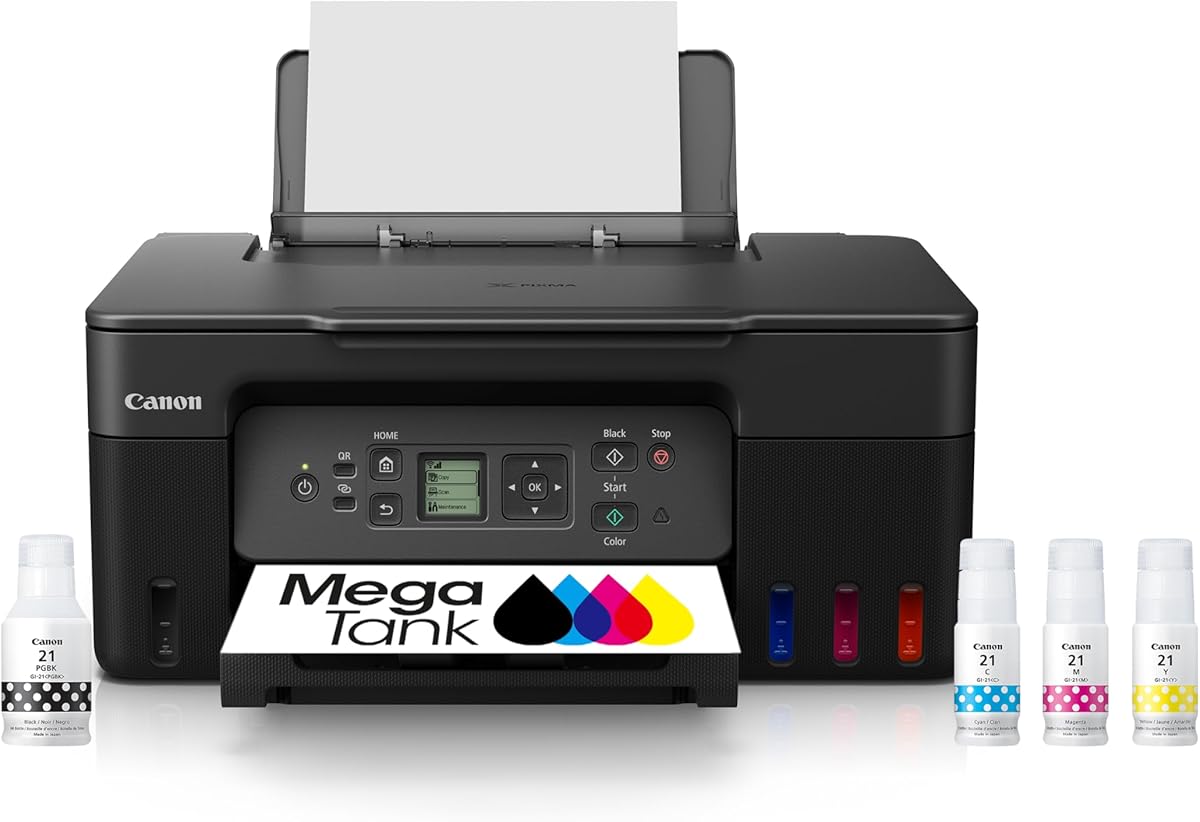
Canon MegaTank G3270
4.1Editor score
High-volume ink tank system
Wireless print copy scanning
Compact square LCD display
An office printer for Windows should do more than produce clean pages. It should connect reliably, handle the document types your routine demands, work smoothly from a desktop or laptop, and make scanning, copying, and routine maintenance as simple as possible. The right model depends on paper volume, color needs, and available space.
This guide compares ten wireless and multifunction options from Canon, HP, and Brother. We considered print speed, paper capacity, automatic duplexing, document feeders, displays, mobile support, connectivity, ink systems, and extra functions such as faxing. The list includes budget-friendly units, compact home-office models, and feature-rich choices for heavier workflows.
Each review explains the product's strongest qualities, practical limitations, and ideal user. The first three recommendations represent the best overall, budget, and premium options, while the full list helps buyers with different needs compare the details. Product features, ratings, and availability can change, so confirm current specifications before purchasing.
4.1Editor score

4.0Editor score

3.8Editor score
As an Amazon Associate we earn from qualifying purchases.
The comparison below highlights the major differences in speed, paper handling, connectivity, and office functions, making it easier to identify the printer that matches your Windows workflow.





The Canon PIXMA TS6520 earns the Editor's Choice distinction because it combines a 4.2 rating with the features most Windows users want in a compact office printer. It prints, scans, and copies over dual-band Wi-Fi, supports automatic two-sided printing, and includes a 1.42-inch monochrome OLED display. That balance of capabilities makes it versatile without turning the device into a complex office machine.
We may earn a commission when you buy through this link, at no additional cost to you.
Its standout strength is useful versatility. The 2-cartridge hybrid ink system is designed to produce sharp text and vivid color for reports, forms, presentations, photographs, and borderless prints. Automatic duplexing reduces paper use and makes lengthy reports easier to handle, while the OLED display provides quick access to ink status, printer status, and settings. Canon PRINT App, Apple AirPrint, and Mopria support also make it convenient to print from a phone, tablet, or computer.
The main limitation is the absence of an automatic document feeder. Multi-page scanning or copying therefore requires placing pages on the flatbed one at a time, which can become tedious for routine administrative work. The two-cartridge configuration should also be considered by buyers who need exceptionally broad photo-color performance, although the supplied specifications position the TS6520 as a balanced hybrid for both documents and photos.
This is the strongest general recommendation for a home office, hybrid worker, or small team that values automatic duplexing, wireless flexibility, and useful controls without needing fax support. It is especially attractive for Windows users who regularly print reports alongside color images and want the printer to remain compact. For workflows dominated by multi-page scanning, however, an OfficeJet Pro model with an automatic document feeder may be more efficient.
Automatic two-sided printing is one of the TS6520's most valuable office features. It avoids manually feeding every sheet again and helps conserve paper during reports, proposals, worksheets, and other lengthy documents. For a Windows workflow centered on PDF files, spreadsheets, and web pages, the ability to produce two-sided pages directly is a meaningful productivity advantage.
Dual-band Wi-Fi support on both 2.4GHz and 5GHz networks gives users more ways to establish a stable connection. Mobile printing through the Canon PRINT App, Apple AirPrint, and Mopria Print Service supports direct access from phones and tablets, while the small OLED screen makes local status checks straightforward.
We may earn a commission when you buy through this link, at no additional cost to you.
The HP OfficeJet Pro 9125 is a feature-rich 4.0-rated choice for Windows offices that need more than basic printing. It combines color printing, scanning, copying, faxing, automatic duplex printing and scanning, an automatic document feeder, and a 250-sheet input tray. A 2.7-inch color touchscreen adds a clear, phone-like interface for navigating settings and managing everyday jobs.
We may earn a commission when you buy through this link, at no additional cost to you.
Performance is the 9125's primary appeal. It prints up to 22 pages per minute in black and 18 pages per minute in color, making it well suited to reports, presentations, brochures, flyers, and mixed office documents. The HP app allows users to print, scan, copy, and fax from a smartphone, while dual-band Wi-Fi is designed to detect and resolve connection issues automatically.
The product also includes formatting tools that can improve web pages and emails by reducing unwanted content and awkward layouts. HP Wolf Pro Security is included to help protect the network from cyber threats, and the enclosure uses more than 40% recycled plastic. Two cautions are important: the supplied information notes a three-month Instant Ink trial followed by a monthly fee unless canceled, and the printer requires cartridges with original HP chips or circuitry.
Choose the 9125 when a small business or busy home office values speed, touchscreen operation, faxing, and convenient multi-page handling. It is a particularly complete package for Windows users who regularly produce polished color documents and want one device to handle several office functions. Users unwilling to use original HP cartridges should consider a different model, while those without fax needs may find the OfficeJet Pro 8125 more streamlined.
Printing, scanning, copying, and faxing make the OfficeJet Pro 9125 useful to administrators, consultants, educators, and home-office operators who do not want separate devices for each task. The automatic document feeder and duplex scan support improve the handling of multi-page records without changing the core layout of a compact office setup.
The 2.7-inch color touchscreen provides more navigation space than a basic LCD and helps users access frequently used functions with fewer steps. HP Wolf Pro Security adds another layer for network-conscious offices, complementing dual-band wireless connectivity and the broad mobile-control options available through the HP app.
We may earn a commission when you buy through this link, at no additional cost to you.
The HP DeskJet 2923 is a straightforward 3.7-rated option for a home office or Windows user who prints to-do lists, letters, financial documents, recipes, and ordinary color pages. It offers color printing, copying, scanning, mobile and wireless printing, an icon LCD, and a 60-sheet input tray. It prioritizes accessibility and compactness rather than high-volume office performance.
We may earn a commission when you buy through this link, at no additional cost to you.
Its wireless features make it practical for shared spaces where a USB cable would be inconvenient. The HP app supports printing, scanning, and copying from a smartphone, and the printer uses dual-band Wi-Fi designed to recognize and address connection issues. HP AI formatting can help simplify web pages and emails by removing unwanted content, while an ENERGY STAR and EPEAT-certified design and at least 70% recycled plastics appeal to environmentally conscious buyers.
The trade-offs are clear. Print speeds reach up to 7.5 pages per minute in black and 5.5 pages per minute in color, which is slower than the OfficeJet Pro models. Its 60-sheet tray requires more frequent replenishment, and automatic duplexing is not listed among its features. These limitations make it better for light duty than for a busy team handling large runs.
The DeskJet 2923 makes sense for someone setting up a first Windows printing station, working in a small home office, or balancing occasional documents with color output. It offers the core print-copy-scan functions without the complexity of a larger touchscreen model. For regular two-sided reports, high-volume printing, or multi-page scanning, a printer with automatic duplexing and a document feeder will require less effort.
Dual-band Wi-Fi and mobile printing make the DeskJet 2923 convenient for a laptop-centered home office. The icon LCD keeps local operation uncomplicated, while the HP app brings printing, scanning, and copying to a phone, reducing the need to move documents manually every time a small job appears.
The model concentrates on the functions used most often: color documents, copying, scanning, and wireless output. HP AI helps keep web and email layouts orderly, while the compact enclosure and relatively small input tray are appropriate where desk space and moderate paper volume matter more than office-scale speed.
We may earn a commission when you buy through this link, at no additional cost to you.
The HP OfficeJet Pro 8125 combines a 3.9 rating with the features expected from a capable home-office printer. It prints up to 20 pages per minute in black and 10 pages per minute in color, includes a 225-sheet input tray, and supports automatic duplex printing, scanning, copying, and an automatic document feeder. A 2.7-inch color touchscreen keeps the controls approachable.
We may earn a commission when you buy through this link, at no additional cost to you.
For Windows users producing business documents, reports, presentations, and flyers, the combination of speed and paper handling is especially useful. Dual-band Wi-Fi helps maintain a dependable network connection, while the HP app allows users to print, scan, and copy from a phone. HP AI can format web pages and emails to reduce wasted pages and awkward layouts, and HP Wolf Essential Security helps protect the connected network.
Compared with the OfficeJet Pro 9125, the 8125 has a slightly lower stated color speed and no fax capability, but it still offers the core combination of automatic duplexing and a document feeder. That makes it a practical middle option for home offices that need more capability than a basic inkjet. The 225-sheet tray reduces interruptions compared with smaller compact models.
Buyers should note that the supplied information mentions a three-month Instant Ink trial followed by a monthly fee unless canceled. It also states that the printer is intended to work only with cartridges containing original HP chips or circuitry. The OfficeJet Pro 8125 is best for a hybrid worker or home business that values speed, duplexing, and multi-page scanning but does not need to send or receive faxes.
A 225-sheet input tray, automatic document feeder, and automatic duplex printing give the OfficeJet Pro 8125 a practical foundation for recurring office work. Users can keep more paper loaded, scan multiple pages, and produce two-sided documents without manually reversing each sheet, all important benefits for reports and administrative paperwork.
The HP app and built-in formatting assistance reduce friction when working with web pages, emails, and mobile content. These features complement the color touchscreen and dual-band wireless connection, giving users several ways to manage a document from a computer or phone.
We may earn a commission when you buy through this link, at no additional cost to you.
The HP DeskJet 2955 is a wireless color inkjet all-in-one intended for straightforward home and office printing. Its 3.7 rating aligns it with the basic end of this list, where simplicity and a compact format matter more than the extensive document handling available from OfficeJet Pro models. It is best approached as a simple document printer with multifunction support rather than a high-output office system.
We may earn a commission when you buy through this link, at no additional cost to you.
Its core appeal is accessibility. A wireless connection removes the need to keep a computer physically tethered, and the all-in-one form provides multiple functions within one enclosure. That design can suit a spare office, dorm-style workspace, or small home office where reliable everyday printing matters more than advanced administration.
The supplied product data is limited, listing a wireless color inkjet all-in-one, an UPC, and a weight of 10.450 pounds. As a result, specific claims about input capacity, duplexing, document feeders, display size, and print speed should be confirmed with the manufacturer or current listing. This is an important limitation when comparing the 2955 with models whose paper-handling specifications are provided in detail.
The DeskJet 2955 is a reasonable candidate for light Windows printing needs, particularly if wireless access and a compact all-in-one design are the priorities. It may also suit buyers who want a secondary printer for occasional documents. If your workflow includes multi-page scanning, automatic duplexing, faxing, or high paper volume, choose a model with those specifications clearly listed instead of assuming they are present.
A wireless all-in-one is convenient when a separate computer should not need a direct cable connection. The DeskJet 2955 can fill a modest printing role in a home office, guest room, or shared workspace, provided its current specifications align with the documents and paper volume involved.
Because the supplied data lists fewer capabilities than many competing models, buyers should check the current product page for tray capacity, feeder availability, duplexing, display controls, and supported connection methods. Confirming those details prevents an attractive all-in-one label from masking an unmet workflow requirement.
We may earn a commission when you buy through this link, at no additional cost to you.
The Canon MegaTank G3270 stands out as the best budget option for high-volume printing because its 4.1 rating and ink-tank system are designed to reduce the frequency of ink refills. Canon states that one set of inks can produce up to 6,000 black-and-white pages or 7,700 color pages. It combines that capacity with wireless printing, copying, and scanning in an accessible all-in-one design.
We may earn a commission when you buy through this link, at no additional cost to you.
The MegaTank concept is especially useful for Windows users who print many reports, lesson plans, forms, invoices, or photos and want fewer refill interruptions. A 1.35-inch square LCD provides local status and control, and wireless connectivity removes the need for a permanent USB link between the printer and each computer. The supplied data also notes that up to two years of ink is included with qualifying configurations.
There are two important workflow limitations. The G3270 supports single-sided printing only, so producing two-sided documents requires manually flipping pages or duplicating content in software. It also lacks an automatic document feeder, making multi-page scanning and copying more labor-intensive. These omissions mean it is not the strongest option for a paperwork-heavy office even though its ink capacity is impressive.
The G3270 suits students, families, teachers, and home-office users with steady print volume and a preference for fewer ink refills. It is also a good fit for users who mainly need one-sided color output, wireless access, and basic scanning. Choose an automatic duplex model instead if two-sided documents and multi-page feeder workflows are central to your Windows routine.
The MegaTank ink system is the defining advantage of the G3270. Canon lists page yields of up to 6,000 black-and-white pages or 7,700 color pages per set of inks, making it well suited to users who cannot easily monitor and replace cartridges throughout a busy month.
Printing, copying, and scanning are available over a wireless connection, while the compact square LCD helps with local setup and status checks. This makes the G3270 versatile for shared home spaces, although the lack of duplexing and a feeder should be considered when planning larger administrative jobs.
We may earn a commission when you buy through this link, at no additional cost to you.
The Canon PIXMA TR4720 is a 3.9-rated wireless four-function printer that supports printing, copying, scanning, and faxing. Its most useful home-office features include an automatic document feeder, automatic two-sided printing, mobile printing, and a 100-sheet paper capacity. It is a well-rounded choice for Windows users who want more functions than a basic compact model without moving to a large touchscreen device.
We may earn a commission when you buy through this link, at no additional cost to you.
The built-in fax function differentiates the TR4720 from several similarly positioned wireless inkjets. It can be useful for medical administration, real estate, legal support, education, or small-business paperwork where faxed documents still form part of the workflow. The automatic feeder and duplex function make the printer more practical for routine multi-page records than models requiring manual page handling.
Its output speed is the principal compromise. Canon lists a black document speed of approximately 8.8 images per minute and a color document speed of approximately 4.4 images per minute for letter-size simplex documents. A 4-by-6-inch borderless photo takes approximately 65 seconds. The 100-sheet capacity is adequate for home use but smaller than the trays offered by several OfficeJet Pro models.
Choose the TR4720 for a home office that values faxing, duplexing, and wireless flexibility in a traditional all-in-one. It also supports borderless output up to 8.5 by 11 inches and includes a one-year limited warranty. It is less suitable for high-volume offices that need faster speeds or larger paper capacity, and users should weigh the usefulness of fax before making it a primary office printer.
The integrated fax function is the TR4720's most distinctive office capability. Combined with copying, scanning, an automatic document feeder, and automatic duplex printing, it covers a broad range of paperwork tasks in one device and may eliminate the need for separate fax hardware.
Alexa integration can send low-ink notifications and, for users who enroll in smart reorders, place a reorder through Amazon. The feature requires enrollment and does not require a subscription, offering another way to monitor a home-office consumable without opening a computer or mobile app.
We may earn a commission when you buy through this link, at no additional cost to you.
The Canon PIXMA TS6420a is a 3.8-rated wireless inkjet all-in-one designed for home or work. It provides printing, copying, and scanning, with a 1.44-inch OLED window, front and rear paper feeding, and an emphasis on simple setup. Its compact format makes it useful where a larger office printer would occupy too much desk or shelf space.
We may earn a commission when you buy through this link, at no additional cost to you.
The OLED window is a noticeable feature in this category because it can present status information and settings in a compact, readable area. The printer's wireless capabilities support flexible placement, while its multifunction design allows users to handle everyday documents without maintaining several separate devices. Compatibility with Alexa also fits into a connected home-office setup.
Compared with the PIXMA TS6520, the supplied information is less extensive and does not list automatic duplexing, an automatic document feeder, or fax. The front-and-rear feeding arrangement gives users convenient loading options, but buyers should verify current paper specifications and workflow features before committing. This is especially important for a Windows office that routinely handles two-sided or multi-page documents.
The TS6420a is best for a compact home office that primarily needs wireless color documents, occasional copies, and scans. It also suits users who value a clear display and straightforward setup over a large control panel. For routine multi-page scanning, automatic two-sided printing, or faxing, move up to the Canon PIXMA TR4720, TR7120, or another model whose listed specifications cover those needs.
The 1.44-inch OLED window provides a dedicated control and status area without requiring a full touchscreen. In a small workspace, that design can keep routine tasks approachable while leaving room on the desk for a laptop, documents, or other equipment.
Wireless connectivity frees the printer from a fixed USB position, while front and rear paper feeding provide flexibility when selecting a location. Users can place it on a shelf or near the main work area and choose the more convenient loading path for different media.
We may earn a commission when you buy through this link, at no additional cost to you.
The Canon PIXMA TR7120 is a highly rated 4.2 compact all-in-one for Windows users who want document, photo, scanning, copying, and automatic duplexing capabilities in one device. Its 1.42-inch monochrome OLED displays ink levels, status, and settings, while dual-band Wi-Fi supports connections over 2.4GHz and 5GHz networks.
We may earn a commission when you buy through this link, at no additional cost to you.
The automatic document feeder is the TR7120's most important workflow advantage. It helps users scan and copy multi-page records without handling each page individually, and automatic two-sided printing conserves paper and shortens the process of producing reports. The 2-cartridge hybrid ink system is designed to provide sharp text and vivid color for documents, photographs, and borderless output up to 8.5 by 11 inches.
Canon PRINT App, Apple AirPrint, and Mopria Print Service expand printing options from Windows computers, phones, and tablets. The compact styling helps it fit into a home office without sacrificing the feeder or duplex function, which is a meaningful advantage over smaller models. Its limitations are the lack of a listed fax function and the use of a two-cartridge system rather than a larger ink-tank arrangement.
The TR7120 is an excellent choice for hybrid workers, students, and small home offices that regularly print reports, scan records, and create color projects. It ties for the highest rating in this comparison and includes more workflow features than the basic Canon PIXMA TS6420a. If faxing is nonessential, its combination of automatic handling, wireless access, and strong document support is hard to overlook.
The automatic document feeder and automatic duplex function work together to reduce manual page handling. This makes the TR7120 more suitable than a flatbed-only model for recurring reports, worksheets, invoices, and records, even though the overall enclosure remains compact enough for a home workspace.
The monochrome OLED provides quick access to ink status, printer status, and settings without adding the bulk of a large touchscreen. Dual-band Wi-Fi, the Canon PRINT App, Apple AirPrint, and Mopria support allow users to work from several devices while maintaining a tidy, cable-free setup.
We may earn a commission when you buy through this link, at no additional cost to you.
The Brother Work Smart 1360 is a 3.8-rated wireless color inkjet all-in-one designed for home and home-office work. It prints, copies, and scans, supports automatic two-sided printing, and combines a 20-sheet single-sided automatic document feeder with a 150-sheet paper tray. Its strongest distinctive features are flexible connectivity and direct access to popular cloud applications.
We may earn a commission when you buy through this link, at no additional cost to you.
The 1.8-inch color display supports navigation and printing or scanning to services such as Google Drive, Dropbox, Box, and OneDrive. This is particularly helpful for a Windows workflow that depends on cloud-hosted documents. The Brother Mobile Connect app also handles printing, copying, scanning, and device management from a mobile device, while its Page Gauge feature monitors ink usage.
Output speed reaches up to 16 pages per minute in black and 9 pages per minute in color. That makes it capable for everyday reports, schoolwork, documents, and presentations. Wireless and USB interfaces offer both flexible placement and a direct connection option. However, the 20-sheet feeder is smaller than those in many competing office models, and the single-sided feeder specification is worth noting for scanning workflows.
Choose the Work Smart 1360 when cloud connectivity, a color display, and a choice of wireless or USB access are priorities. It is well suited to a home office that wants automatic duplexing without a large touchscreen chassis. It may be less appealing for offices that need faxing, a larger feeder, or higher print speed, but for connected document handling it offers a capable and polished feature set.
The ability to print from and scan to Google Drive, Dropbox, Box, OneDrive, and other supported cloud apps reduces the steps required to move documents between online services and a Windows computer. The color display makes those destinations and device functions easier to manage directly from the printer.
Wireless networking supports placement away from the primary computer, while USB provides a dependable wired option when preferred. The Brother Mobile Connect app broadens control to a phone or tablet, and Page Gauge provides a convenient way to check ink status before beginning a large job.
We may earn a commission when you buy through this link, at no additional cost to you.
Choosing an office printer for Windows begins with how you print rather than with the broadest specification list. Match output speed, paper handling, connectivity, ink behavior, and multifunction capabilities to the documents and people who will use the device every day.
Print speed matters most when documents accumulate in queues or several people share one device. The HP OfficeJet Pro 9125 leads the listed specifications at up to 22 black pages per minute and 18 color pages per minute, while the OfficeJet Pro 8125 reaches up to 20 black and 10 color pages per minute. The Brother Work Smart 1364 offers up to 16 black and 9 color pages per minute. For light use, the HP DeskJet 2923's listed maximum of 7.5 black and 5.5 color pages per minute may be sufficient, but a long report can take noticeably longer.
Automatic two-sided printing is a major workflow benefit for reports, proposals, worksheets, and internal documents. The Canon PIXMA TS6520, TS6420a listing details beyond wireless functions, TR7120, HP OfficeJet Pro 8125, OfficeJet Pro 9125, and Brother Work Smart 1360 have automatic duplexing listed. The Canon MegaTank G3270 is single-sided only, while duplexing is not listed for the HP DeskJet models. Windows users who regularly create multipage PDFs or office reports should treat duplexing as a priority rather than a minor convenience.
An automatic document feeder saves substantial time when scanning or copying several pages. The Brother Work Smart 1360 includes a 20-sheet single-sided feeder, while the Canon PIXMA TR7120 and TR4720 also have automatic document feeders. HP's OfficeJet Pro 9125 and 8125 include feeders for multi-page office work, and the 9125's automatic duplex scanning expands its usefulness. Flatbed-only models such as the Canon PIXMA TS6520 and MegaTank G3270 are more appropriate when documents are short or scattered rather than batch processed.
Wireless printing is standard across the featured models and is especially useful in a Windows office because laptops can remain at the desk while the printer sits elsewhere. The Canon PIXMA TS6520 and TR7120 support dual-band Wi-Fi at 2.4GHz and 5GHz, while the HP OfficeJet Pro 9125, OfficeJet Pro 8125, and DeskJet 2923 also list dual-band connectivity. The Brother Work Smart 1360 supports wireless and USB. Mobile apps, Apple AirPrint, Mopria, and cloud services add valuable ways to retrieve or send documents without navigating to a saved printer queue.
Ink behavior can determine how often a printer needs attention. The Canon MegaTank G3270 is built around a tank system that Canon states can produce up to 6,000 black-and-white pages or 7,700 color pages from one set of inks, making it attractive for sustained output. Other models use cartridge-based systems. Some HP printers include trial enrollment for Instant Ink, with a monthly fee applying after the trial unless canceled, so buyers should review the service terms before enrollment. Original HP chips or circuitry are also required for the listed OfficeJet Pro models.
An office printer may need more than crisp reports. The Canon PIXMA TS6520 and TR7120 use 2-cartridge hybrid ink systems designed for sharp text and vivid color, and they support borderless output up to 8.5 by 11 inches. The HP OfficeJet Pro 9125 targets professional-quality color documents such as presentations, brochures, and flyers, while the OfficeJet Pro 8125 is intended for business documents, reports, and similar material. Choose based on whether photographs are occasional additions or a major part of the output.
The right control interface can reduce setup and daily friction. The HP OfficeJet Pro 9125 and 8125 use 2.7-inch color touchscreens, while the Brother Work Smart 1360 has a 1.8-inch color display. Canon models use compact OLED or LCD panels for status and settings. HP AI formatting can improve web-page and email layouts, and HP Wolf Pro Security or HP Wolf Essential Security appears on the two OfficeJet Pro models. Windows users should also consider whether the preferred companion app handles printing, scanning, copying, and management from one place.
A printer that looks compact on a listing may still need room for a feeder, rear feed path, or output tray. The Canon PIXMA TS6520, TS6420a, and TR7120 emphasize compact designs, while the Brother Work Smart 1360 includes a 150-sheet tray and 20-sheet feeder. Larger paper capacities appear with the OfficeJet Pro 9125 at 250 sheets and 8125 at 225 sheets. Fax support is listed for the HP OfficeJet Pro 9125 and Canon PIXMA TR4720 but not for the other models, so confirm it whenever it is a required business function.
Begin by unpacking the printer, removing any packing material, installing the supplied ink or toner components, and loading a modest amount of the paper type you use most. Connect the unit to the same wireless network as the Windows computer, install the manufacturer's software if prompted, and complete the test page. For models that support USB as well as wireless, deciding on one primary connection method makes initial setup and troubleshooting simpler.
Create sensible print queues and presets for recurring work. Automatic duplex should be enabled for two-sided documents, while color or grayscale modes can suit different tasks. The relevant mobile or desktop app can be used for scanning, copying, cloud destinations, ink monitoring, and device management. When using a document feeder, make sure the pages are aligned and within the stated capacity, and place originals in the orientation the machine expects.
Care for the printer by using suitable paper, keeping the scanner glass and document guides clean, and checking the control panel for low-ink or paper warnings. Review print alignment and test pages when quality changes, and avoid leaving unused ink cartridges or components in a hot or humid storage area. For ink-tank models, keep the tanks at the recommended level and follow the manufacturer's instructions. Before a large project, confirm paper capacity, feeder capacity, duplex settings, and remaining ink so a job does not stop midway.
The Canon PIXMA TS6520, TS6420a, and TR7120 are designed around straightforward setup, wireless connectivity, and mobile printing support. The HP OfficeJet Pro models also provide guided setup through the HP app and a larger touchscreen, while the Brother Work Smart 1360 offers both wireless and USB options. The easiest choice depends on whether you prefer a large guided display, a compact OLED, or a simple mobile-app workflow. Confirm the current setup requirements before moving the printer into its final position.
An automatic document feeder is helpful if you routinely scan or copy several pages at once. It reduces the need to lift the scanner lid and reposition each sheet, making the HP OfficeJet Pro models, Brother Work Smart 1360, and Canon PIXMA TR7120 or TR4720 more convenient for batch paperwork. If documents are brief and you rarely copy records, a flatbed scanner may be sufficient. The Canon PIXMA TS6520 and MegaTank G3270 are better suited to that lighter workflow.
A tank-based system can reduce refill frequency when a printer will produce a large number of pages regularly. Canon states that the MegaTank G3270 can print up to 6,000 black-and-white pages or 7,700 color pages using one set of inks. Your actual experience will depend on document coverage, color use, and maintenance habits. It is especially relevant for students, teachers, and home offices with steady rather than occasional output.
Duplex printing produces two-sided pages automatically, while duplex scanning reads both sides of an original document. The HP OfficeJet Pro 9125 lists both automatic two-sided printing and scanning. Other models may offer automatic duplex printing without automatic two-sided scanning, and the Brother Work Smart 1360's feeder is specifically described as single-sided. Check both functions separately if your workflow scans records as well as prints reports.
Only if your organization regularly sends or receives faxed documents. The HP OfficeJet Pro 9125 and Canon PIXMA TR4720 include built-in fax, making them relevant for administrative, medical, legal, educational, and real-estate workflows. Other all-in-one models focus on printing, scanning, and copying. Choose based on actual use rather than assuming a printer with a feeder can also fax.
Most of the listed models support mobile workflows through their respective apps or compatible services. Canon models include options such as the Canon PRINT App, Apple AirPrint, and Mopria Print Service, while HP products support control through the HP app and Brother offers the Brother Mobile Connect app. Your phone or tablet should be on the same network and using a compatible service. This convenience is valuable for retrieving a document without restarting a computer workflow.
Cloud support is useful when documents are stored in Google Drive, Dropbox, Box, OneDrive, or similar services. The Brother Work Smart 1360 directly supports several of those destinations through its color display, while other models may use their companion apps for cloud workflows. Consider cloud access if you work across multiple locations or want to scan a document directly to a storage service. Keep the account and file permissions properly configured before scanning sensitive material.
Choose a compact model when your printing is light, space is limited, and one-sided documents are the norm. Choose an OfficeJet Pro when you value faster output, automatic duplexing, a larger touchscreen, a bigger paper tray, and an automatic document feeder. The OfficeJet Pro 9125 also adds fax and duplex scanning. The right decision depends on workload and required functions rather than on the OfficeJet label alone.
The Canon PIXMA TS6520 is the strongest all-around recommendation because it combines a 4.2 rating, automatic duplexing, dual-band wireless connectivity, useful mobile support, and a clear OLED display. The Canon MegaTank G3270 is the budget pick for sustained output and fewer refills, while the HP OfficeJet Pro 9125 is the feature-rich premium option for fast color printing, faxing, a touchscreen, and extensive paper handling.
Prioritize the capabilities that appear in your weekly routine. Choose a document feeder for batch scanning, automatic duplexing for two-sided reports, a tank system for frequent pages, and cloud or mobile support if that is how you retrieve files. A basic DeskJet may be enough for occasional color documents, but an OfficeJet Pro or similarly equipped Canon model will reduce manual work when the workload grows.
Before buying, verify the current specifications, printer compatibility details, service terms, cartridge requirements, and physical dimensions. Ratings and features can evolve, and retailer listings can change. Comparing the current listing with the workflow you actually have will lead to a more reliable Windows office-printer choice than choosing from specifications alone.